Client-level access control
We have introduced several improvements to client-level access control, giving teams more flexibility and control when managing client access across assessments. You can now grant access to all current and future assessments, delegate client access management to designated client users, and define client user properties, such as whether a user is a client lead, across all assessments.
Client Managers
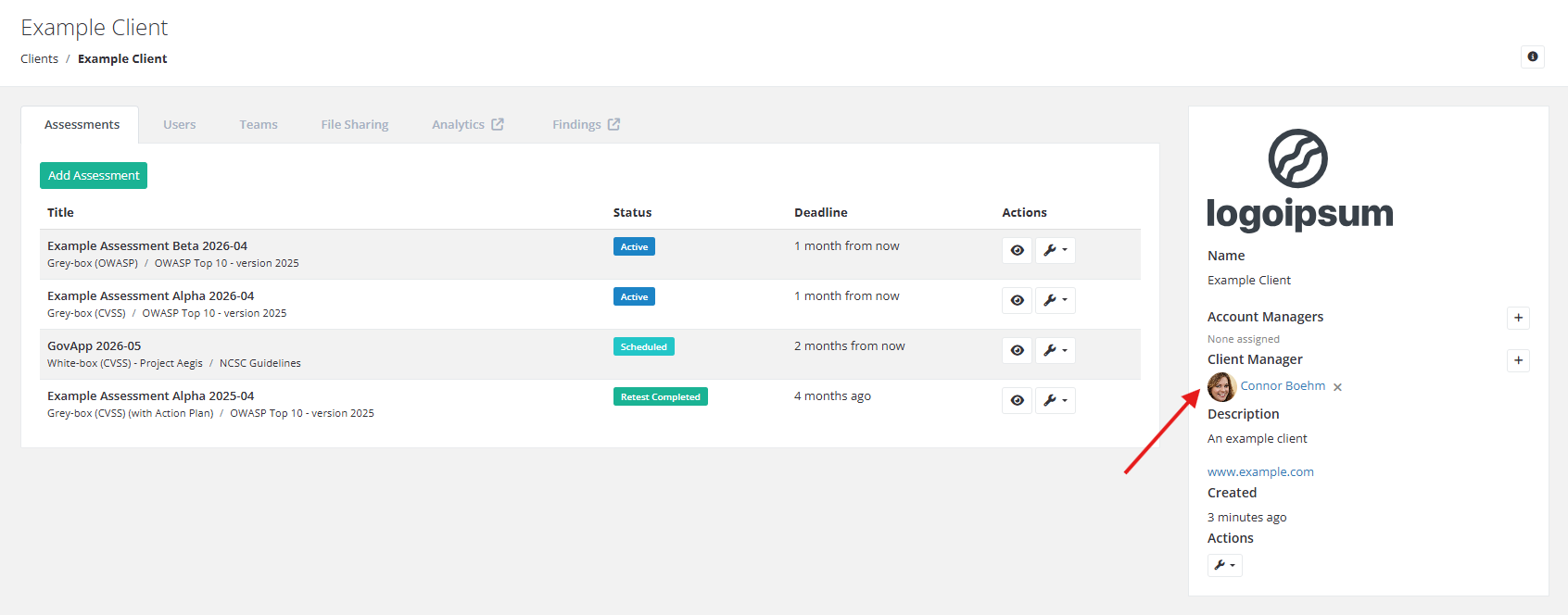
You can now designate client users as client managers for a specific client. Client managers are assigned from the main client page and automatically receive access to all assessments for that client, along with full control over teams and client user access within those assessments.
Teams
User groups have been renamed to teams. As before, teams can be created per client and assigned to assessments or to findings as resolvers.
You can now grant a team access to all future assessments for a client. These teams will automatically be assigned to every new assessment for that client.
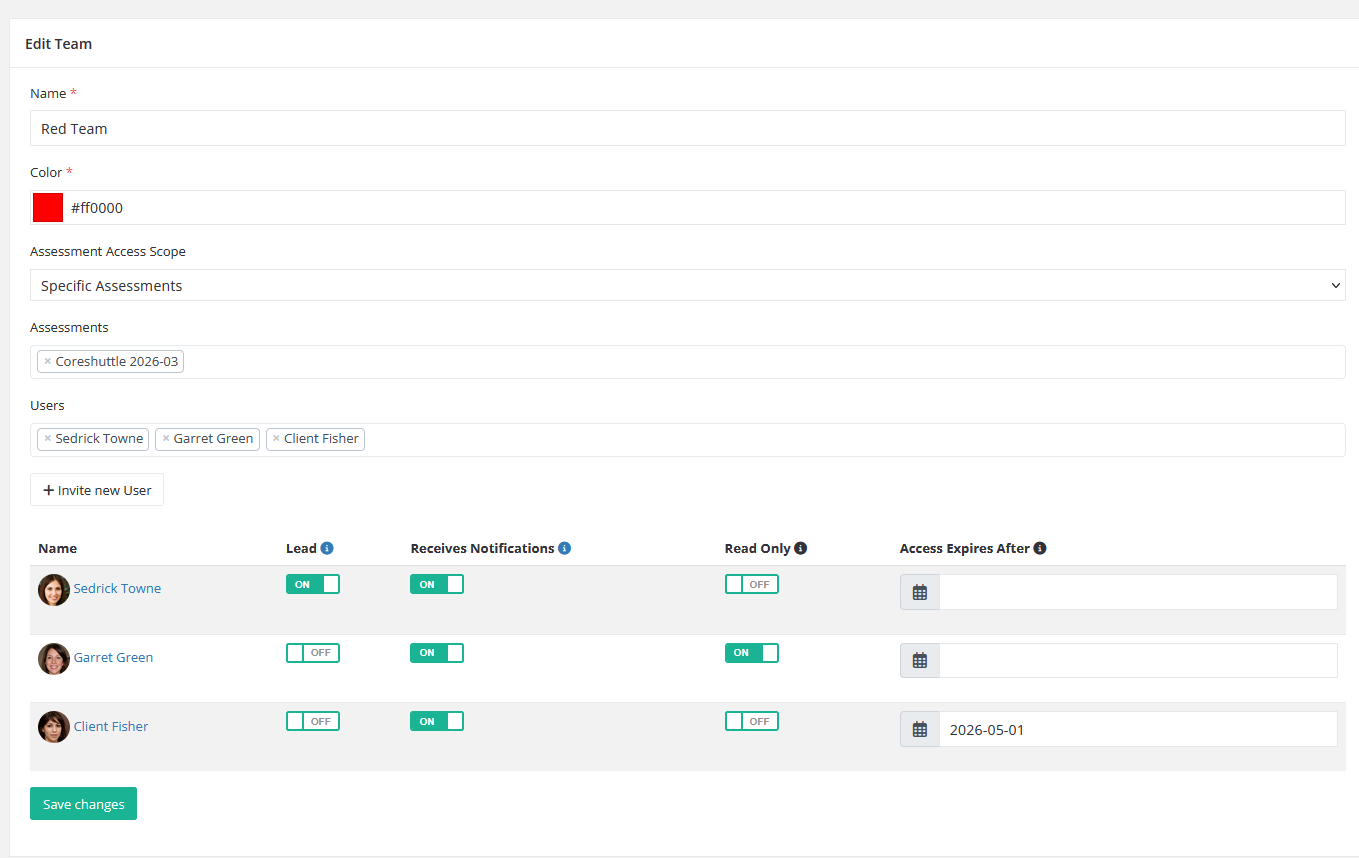
Per-user properties are also now configurable at the team level: you can mark a user as a client lead, set their access to read-only, or specify an access expiry date. These properties serve as defaults that can be overridden at the assessment level, except for read-only status and access expiry, which act as upper bounds. Assessment-level settings cannot grant more access than the team-level defaults allow.
Account managers
Account managers can now optionally be assigned to all future assessments for a client, ensuring they automatically receive admin-level access to every new assessment, regardless of who created it.
Read-only client users
When adding a client user to an assessment, you can now grant them read-only access. They can view the assessment, findings, and reports, while actions such as commenting, requesting retests, and assigning users remain disabled. Read-only access is useful for auditors or higher-level managers who want to keep an eye on what's happening in the assessment.
Improvements
- Improved the performance throughout the application.
Note: For best performance, we recommend configuringinnodb_buffer_pool_sizeappropriately inmy.cnfwith a minimum of 512 MB. Please refer to the documentation for more information. - Added CAPTCHAs to the password reset, password setup, and initial setup forms.
- Updated the order of the AI section on the general documentation page.
- Clients can now access assessment users through the API.
Bug fixes
- Fixed an issue that caused most MCP tools to return HTTP 400.
- Fixed an issue where inline code was not rendered correctly in figure captions.
- Fixed an issue where the remediation chart would not render when there were no findings for a given time period and severity.
- Fixed findings table status sorting to follow the configured display order. Unresolved findings now appear first, followed by partially resolved findings, with resolved findings listed last.
- Fixed automatic target matching when importing findings into an assessment that uses a different assessment template than the original assessment.
- Fixed an issue rendering side-by-side codeblocks in callouts.
- An "Are you sure?" popup no longer shows when you navigate away after successfully creating a finding.